Understand and generate unix passwords

I needed to generate an entry in the /etc/shadow file, without using the standard tools. It turned out it was not a good idea for my needs, but in the meantime I learned a lot about the format of this file and how to manually generate passwords.

Shadow file format

User passwords are stored in the file /etc/shadow. The format of this file is extensively described in the shadow man page. Each line is divided in 9 fields, separated by colons but we are interested only in the 2 first fields, namely username and password.

The password field itself is split in 3 parts, divided by $, for instance

$6$njdsgfjemnb$Zj.b3vJUbsa0VRPzP2lvB858yXR5Dg4YOGhoytquRKVpSNWt8v/gHAVh2vVgl/HUG7qZK.OmHd.mjCd22FUjH.

What does that mean?

The first field (in our example $6) tells us which hash function is used. It will usually be 6 (SHA-512) under linux. The values can be found in man crypt, but they are as follow:

 ID  | Method
 ─────────────────────────────────────────────────────────
 1   | MD5
 2a  | Blowfish (not in mainline glibc; added in some
     | Linux distributions)
 5   | SHA-256 (since glibc 2.7)
 6   | SHA-512 (since glibc 2.7)

The second field is a salt. It is used to make sure that 2 users with the same password would actually end up with 2 different hashes. It is randomly generated at password creation, but technically as we will see it later, it can be manually set. Wikipedia has more information about the cryptographic salt.

The third field is the password with the hash (second field) concatenated, hashed using the function defined in the first field.

How to generate a valid password entry?

For ID 1 (MD5) you can use openssl:

salt=pepper
pwd=very_secure
openssl passwd -1 -salt $salt $pwd
# outputs: $1$pepper$XQ7/iG9IT0XdBll4ApeJQ0

You cannot generate a SAH-256 or SHA-512 hash that way, though. The easiest and generic way would then be to use python or perl. For a salt ‘pepper’ and a password ‘very_secure’, both lines would yeld the same result:

#Pythonista
python -c 'import crypt; print crypt.crypt("very_secure", "$6$pepper")'
# There is more than one way to do it
perl -e 'print crypt("very_secure", "\$6\$pepper\n") . "\n"'

# outputs: $6$pepper$P9Wt3.3Uqh9UZbvz5/6UPtHqa4KE/2aeyeXbKm0mpv36Z5aCBv0OQEZ1e.aKcPR6RBYvQIa/ToAfdUX6HjEOL1

Vertica ODBC error messages and solutions

Those are error messages and solutions found after lots of trials and errors. I am mostly using python with Vertica, some some solutions might thus be python specific, but most should be generic enough.

[HY000] [unixODBC][Vertica][ODBC] (11560) Unable to locate SQLGetPrivateProfileString function. (11560) (SQLDriverConnect)

The ODBC connection does not find a properly defined DSN. Reasons include:

  • Path not existing in one of the odbc.ini or odbcinst.ini files (check mostly ODBCInstLib, Driver, Driver64).

[22001] [Vertica][ODBC] (10170) String data right truncation on data from data source: String data is too big for the driver’s data buffer. (10170) (SQLPutData)

This is a unicode issue. Reasons might be:

  • Old pyodbc which does not handle UTF-8  properly (try to use version 3+)
  • Vertica’s VARCHAR length is given in bytes, not character. So if you have UTF8 characters in a string, you might go above the limit without noticing. Eg. a VARCHAR(1) can hold ‘0’ but not ‘€’.
  • Pyodbc does not handle unicode properly. If you are using python, encode in UTF-8.

[IM002] [unixODBC][Driver Manager]Data source name not found, and no default driver specified (0) (SQLDriverConnect)

The DSN used does not exist. Reasons include:

  • Typo in the DSN in your code (you are asking for a DSN not defined in odbc.ini).
  • odbc.ini file syntax invalid (for instance closing square bracket forgotten).
  • DSN not defined in the used odbc.ini file.
  • Wrong odbc.ini file used, hence DSN not found. This can happen if a $HOME/.odbc.ini file, often created by default, exists.
  • The odbc.ini is not in the expected path (/etc/odbc.ini). Pointing the ODBCINI environment variable to the right path might work.
  • The odbc.ini file references a Driver in the the relevant DSN section which is not defined in /etc/odbcinst.ini.

[HY000] [unixODBC][DSI] The error message NoSQLGetPrivateProfileString could not be found in the en-US locale. Check that /en-US/ODBCMessages.xml exists. (-1) (SQLDriverConnect)

Vertica needs some extra specifications in either /etc/vertica.ini (default), or in the file pointed to by the VERTICAINI environment variable:

[Driver]
ErrorMessagesPath = /opt/vertica/lib64/
ODBCInstLib = /usr/lib/x86_64-linux-gnu/libodbcinst.so
DriverManagerEncoding=UTF-16

Usually I just add this to odbc.ini and points VERTICAINI to it.

pyodbc.Error: (‘H’, ‘[H] [unixODBC][ (4294967295) (SQLDriverConnectW)’)

You are using an old version of pyodbc. Upgrade system wide or create a virtualenv and pip install pyodbc.

Python + Vertica = pyvertica

At $work we use mostly python for all the glue between systems and other developments. Naturally, when we started using Vertica, we wanted to connect to it via python. Of course, vertica is accessible via ODBC and supports standard SQL, but to fully harness its specificities, we needed a bit more. INSERT statements are very slow, for instance, and should be replaced by COPY, as already described in the best practices.

We quickly decided to create an open source library which can handle that for us. This hides the dirty details of the COPY statement, and allows us to insert data in a pythonic way.

The best way to show it in action is to display a quick example, taken from the documentation:


from pyvertica.batch import VerticaBatch

batch = VerticaBatch(
  odbc_kwargs={'dsn': 'VerticaDWH'},
  table_name='schema.my_table',
  truncate=True,
  column_list=['column_1', 'column_2'],
  copy_options={
    'DELIMITER': ',',
  }
)

row_list = [
  ['row_1_val_1', 'row_1_val_2'],
  ['row_2_val_1', 'row_2_val_2'],
  ...
]

for column_data_list in row_list:
  batch.insert_list(column_data_list)

error_bool, error_file_obj = batch.get_errors()

if error_bool:
  print error_file_obj.read()

batch.commit()

As you can see, inserting data is just as easy as calling insert_list on a well defined object. There are as well other helpers to insert raw data, if for instance you just read a line from a csv file, there is no need to parse it in python to define columns, you can just throw all data to pyvertica. All COPY options are useable when you define the object, they will just be passed as is to Vertica.

Technically, this was an interesting little project. The COPY statement reads data from a file (actual file, STDIN or fifo). As we did not want to duplicate data on disk, pyvertica actually creates a fifo, spawns a thread running the COPY statement and send data to the fifo. Whatever you send to pyvertica is converted into a csv-like structure, which is what COPY understands.

We use it in production since months without a single issue. Depending on used hardware and extra processing, it is easily possible to import 100.000 records/second.

The installation is very easy as pyvertica can be found in the python package index. Just type

pip install pyvertica

and you are good to go.

To actually connect to vertica, you have the choice of

  • pass a valid odbc connection to pyvertica
  • setup a proper odbc.ini and pass the DSN to pyvertica
  • craft your ow DSN-less line and pass it to pyvertica.

All documentation can be found on readthedocs page of pyvertica, and the source can be found and forked on the pyvertica github repository.

Flume ‘Not a data file’ and canary files

Flume played a nasty trick on us recently. The files on a spooldir source were not processed, ending up filling up our disk. Looking a bit at the symptoms, 2 effects were obvious:

  • A lot of canary files appeared, with names like ‘flume-spooldir-perm-check-983522283290612181.canary’
  • Flume.log was swamped with java.io.IOException: Not a data file.

The canary files are created as a part of permission checking of a spooldir, as can be seen on github. The only thing is that they are supposed to be deleted afterwards, as they only are there to see if flume can write on the directory. In our case they were not deleted, because creating a new empty file can be done on a full disk, but writing it needs free space. The check thus errored out before deletion. Those files can safely be deleted.

The “java.io.IOException: Not a data file” exception was due to the presence of a temporary directory holding metadata for processing. This directory is controlled by the trackerDir directive in the definition of the spooldir source in flume.conf (by default .flumespool in the spooldir). We ended up having empty metadata files, which then did not have the 2 bytes that avro (we are using an avro sink) expected to see. There is actually nothing wrong at all with the actual data file, only with the metadatafile. The solution is thus to delete .flumespool and the issue resolved itself (after releasing a bit of space from the disk, of course.)

The root cause of all this was that we used the default deletePolicy of never in flume.conf, meaning that once a file is processed, it is renamed but not removed. We do have a job to remove those processed files, but it failed for while, thus letting the disk fill up. We now delete files directly after processing (deletePolicy: immediate).

Edit: I sent a flume bug and patch, at FLUME-2361. Hopefully this will be merged at some point soon.

Clean pentaho shared connections from transformations and jobs

Pentaho has this nice shared.xml file, which can be found in your $HOME/.kettle repository. Once used, you can define all your connections there, in theory preventing duplicating connection definition in all jobs, and thus having one place only where to update your connections when needed.

The sad reality is that each time you save a job or a transformation, the connections are still always embedded in the job or transformation, effectively duplicating them. If you somehow remove the connection details from your job/transfo, the one from shared.xml will be used, which is what we want.

This ‘somehow’ can easily be achieved by the following snippet:

find . -type f -print0 | xargs -0 perl -0 -p -i -e 's/\s*<connection>\s*<.*?<\/connection>\s*$//smg'

We run it regularly on our codebase to keep it clean, and this always worked as expected.

Accessing Hive via JDBC with DbVisualiser

Hive has a SQL interface via jdbc, you can thus connect to it with your usual tools (DBVis, Squirrel). I will explain here how to connect via DBVis, but the ideas are very similar when connecting with any other tool.

Create a new driver

From Tool > Driver manager, click the top button with a green ‘+’ to add a driver as shown in the following screenshot.

Fill up then the ‘Name’ (this is for you only, the value can be different than the one shown below) and ‘URL format’ fields as shown.

Note that in the picture the port is 9000, usually the default hive port is 10000.

New Driver

Add the relevant jars

You need to load a set of jars to be able to connect to Hive. Make sure that you use exactly the same version for hive-jdbc and hive-service as the one on your hive server. I usually take a copy of all the jars and put them in one directory, making my life easier. You can get the jars from your hive’s installation directory:

  • On a Mac with homebrew, after having installed hive you can find them under /usr/local/Cellar.
  • On a rpm-based linux, from the cloudera rpms (install hive) you can find them somewhere under somewhere under /usr/lib
  • Directly in your downloaded folders if you get the binary version of hive from cloudera.

Note that as version number might slightly differ I do not write them in the jar names below.

  • You will need:
    • commons-logging.jar
    • hive-jdbc.jar
    • hive-service.jar
    • libthrift.jar
    • slf4j-api.jar
    • slf4j-log4j12.jar

Click then the ‘open icon’ as shown as in the previous screenshot, and select all the jars you uncompressed in the previous step. This will fill the ‘Driver Class’ dropdown box, you need to choose ‘org.apache.hive.jdbc.HiveDriver’.

driverclass

Create a new database connection

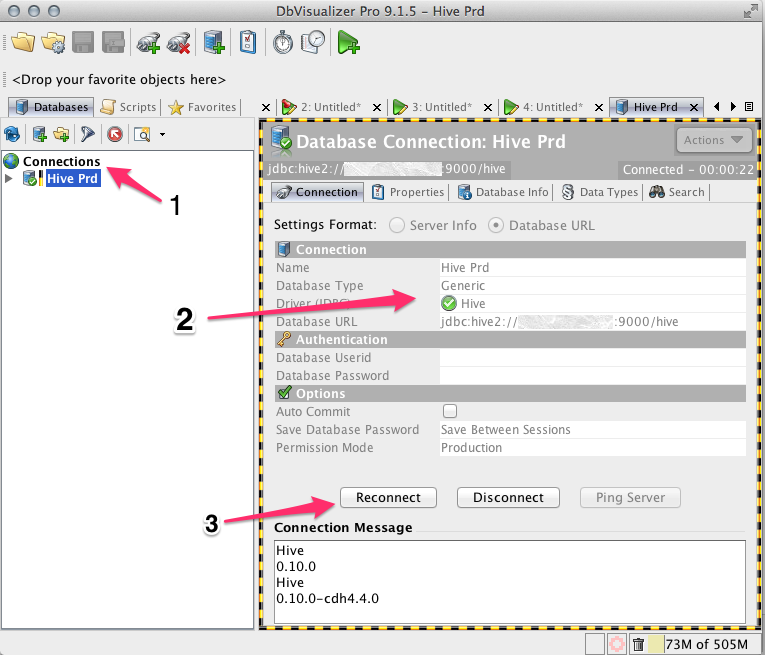
Right click on Connection, select ‘New connection’ (see 1 in the picture below.)
Fill up then the details pointed by 2 in the picture. The name is for your reference only, select the Driver name you just set up in the previous phase, and fill up the database URL as shown.

Click then connect (or reconnect if you are trying again), pointed by 3 in the picture. You should see some output as displayed in the connection message.

Database Connection

You are now good to go!

Disco: purge all completed jobs

In Disco, jobs not purged still use some disk space, for temporary data. This can lead to fully using all the disc space in your cluster. I have been there, and it is not fun I promise you.

You can setup some purge policy (a job might purge itself after completion, for instance), but if you need to quickly clean up all jobs, this snippet will help. It will purge all completed jobs, successful or not.

for job in $(disco jobs);
do
  disco events $job | grep "WARN: Job killed\|READY";
  if [ $? -eq 0 ];
  then
    disco purge $job;
  fi;
done

Disco: replicate all data away from a blacklisted node

Before removing a node from Disco, the right way to do it is to blacklist it, replicate away its data, and finally remove it form the cluster. Replicating data away is done by running the garbage collector. Unfortunately, the garbage collector does not migrate everything in one go, so a few runs are needed. To not have to do this manually, the following script will run the garbage collector as often as needed as long as some nodes are blacklisted but not yet safe for removal. The full script can be found on github.

#!/usr/bin/env bash

# Will check if there are nodes blacklisted for ddfs but not fully replicated yet.
# If this is the case, it will run the GC as long as all data is not replicated away.

# debug
#set -x

# Treat unset variables as an error when substituting.
set -u

# master
HOST=disco.example.com:8989
DDFS_URL="http://$HOST/ddfs/ctrl"
DISCO_URL="http://$HOST/disco/ctrl"

# API commands
GC_STATUS=$DDFS_URL/gc_status
GC_START=$DDFS_URL/gc_start
BLACKLIST=$DISCO_URL/get_gc_blacklist
SAFE_GC=$DDFS_URL/safe_gc_blacklist

# counter to mark how many times the GC ran.
CNT=0

function is_running {
    # will get "" if GC not running, or a string describing the current status.
    _GC_RES=$(wget -q -O- $GC_STATUS)
    if [ "$_GC_RES" == '""' ]
    then
        _GC_RES=''
    fi
    echo $_GC_RES
}

function is_safe {
    _BLACKLISTED=$(wget -q -O- $BLACKLIST)
    _SAFE=$(wget -q -O- $SAFE_GC)

    # eg.
    # blacklisted:  ["slave1","slave2","slave3"]
    # safe_gc_blacklist: []

    # safe is a subset of get. If we concat the 2 (de-jsonised) and get uniques, we have 2 cases:
    # - no uniques =&gt; all nodes are safe (in blacklist *and* in safe)
    # - uniques =&gt; some nodes are not safe

    echo "$_BLACKLISTED $_SAFE" | tr -d '[]"' | tr ', ' '\n' | sort | uniq -u
}

while true
do

    GC_RES=$(is_running)

    if [ -z "$GC_RES" ]
    then
        echo "GC not running, let's check if it is needed."
        NON_SAFE=$(is_safe)
        if [ -z "$NON_SAFE" ]
        then
            echo "All nodes are safe for removal."
            exit
        else
            echo "Somes nodes are not yet safe: $NON_SAFE"
            CNT=$((CNT+1))
            date +'%Y-%m-%d %H:%M:%S'
            wget -q -O /dev/null $GC_START
            echo "Run $CNT started."
        fi
    else
        echo "GC running ($GC_RES). Let's wait".
    fi
    sleep 60
done

How to build a full flume interceptor by a non java developer

Building a flume interceptor does not look too complex. You can find some examples, howtos or cookbooks around. The issue is that they all explain the specificities of the interceptor, leaving a python/perl guy like me in the dark about maven, classpaths or imports. This posts aims to correct this. This will describe the bare minimum to get it working, but I link to more documentation if you want to go deeper. You can find the code on github as well.

The interceptor itself

You need to create a directory structure, in which to write the following java code. It needs to be under src/main/java/com/example/flume/interceptors/eventTweaker.java in this example, for an interceptor named com.example.flume.interceptor.eventTweaker.

package com.example.flume.interceptors;

import java.util.List;
import java.util.Map;

import org.apache.flume.Context;
import org.apache.flume.Event;
import org.apache.flume.interceptor.Interceptor;

import org.apache.log4j.Logger;

public class eventTweaker implements Interceptor {

  private static final Logger LOG = Logger.getLogger(eventTweaker.class);

  // private means that only Builder can build me.
  private eventTweaker() {}

  @Override
  public void initialize() {}

  @Override
  public Event intercept(Event event) {

    Map&lt;String, String&gt; headers = event.getHeaders();

    // example: add / remove headers
    if (headers.containsKey("lice")) {
      headers.put("shampoo", "antilice");
      headers.remove("lice");
    }

    // example: change body
    String body = new String(event.getBody());
    if (body.contains("injuries")) {
      try {
        event.setBody("cyborg".getBytes("UTF-8"));
      } catch (java.io.UnsupportedEncodingException e) {
        LOG.warn(e);
        // drop event completely
        return null;
      }
    }

    return event;
  }

  @Override
  public List&lt;Event&gt; intercept(List&lt;Event&gt; events) {
    for (Event event:events) {
      intercept(event);
    }
    return events;
  }

  @Override
  public void close() {}

  public static class Builder implements Interceptor.Builder {

    @Override
    public Interceptor build() {
      return new eventTweaker();
    }

    @Override
    public void configure(Context context) {}
  }
}

Maven configuration

To build the above, you need a pom.xml, to be put at the root of the aforementioned tree. The following is bare minimum which would probably make any java developer cringe, but It Works™.

<project xmlns="http://maven.apache.org/POM/4.0.0" xmlns:xsi="http://www.w3.org/2001/XMLSchema-instance"
 xsi:schemaLocation="http://maven.apache.org/POM/4.0.0 http://maven.apache.org/xsd/maven-4.0.0.xsd">
 <modelVersion>4.0.0</modelVersion>
 <groupId>org.apache.flume</groupId>
 <artifactId>eventTweaker</artifactId>
 <version>1.0</version>

 <repositories>
 <repository>
 <id>central</id>
 <name>Maven Central</name>
 <url>http://repo1.maven.org/maven2/</url>
 </repository>
 <repository>
 <id>cloudera-repo</id>
 <name>Cloudera CDH</name>
 <url>https://repository.cloudera.com/artifactory/cloudera-repos/</url>
 </repository>
 </repositories>

 <properties>
 <flume.version>1.4.0-cdh4.4.0</flume.version>
 </properties>

 <dependencies>
 <dependency>
 <groupId>org.apache.flume</groupId>
 <artifactId>flume-ng-sdk</artifactId>
 <version>${flume.version}</version>
 </dependency>
 <dependency>
 <groupId>org.apache.flume</groupId>
 <artifactId>flume-ng-core</artifactId>
 <version>${flume.version}</version>
 </dependency>
 <dependency>
 <groupId>log4j</groupId>
 <artifactId>log4j</artifactId>
 <version>1.2.16</version>
 <exclusions>
 <exclusion>
 <groupId>com.sun.jdmk</groupId>
 <artifactId>jmxtools</artifactId>
 </exclusion>
 <exclusion>
 <groupId>com.sun.jmx</groupId>
 <artifactId>jmxri</artifactId>
 </exclusion>
 </exclusions>
 </dependency>
 <dependency>
 <groupId>junit</groupId>
 <artifactId>junit</artifactId>
 <version>4.11</version>
 </dependency>
 </dependencies>

</project>

Once done, you can just type

mvn package

and a jar will be created for you under the target directory.

Tree example

After compilation, here is how my directory structure looks like:

.
├── pom.xml
├── src
│   └── main
│       └── java
│           └── com
│               └── example
│                   └── flume
│                       └── interceptor
│                           └── eventTweaker.java
└── target
    ├── classes
    │   └── com
    │       └── example
    │           └── flume
    │               └── interceptors
    │                   ├── eventTweaker$1.class
    │                   ├── eventTweaker$Builder.class
    │                   └── eventTweaker.class
    ├── maven-archiver
    │   └── pom.properties
    └── eventTweaker-1.0.jar

Jar destination

You need to put the jar (in this case target/eventTweaker-1.0.jar) in the flume classpath for it to be loaded. You can do so in 2 ways:

  1. By editing the FLUME_CLASSPATH variable in the flume-env.sh file
  2. By adding it under the $FLUME_HOME/plugins.d directory. In this directory, put your jar at  your_interceptor_name/lib/yourinterceptor.jar and voilà, it will be loaded automagically.

Flume configuration

Debuging

You can see log statements in the usual flume.log file, probably under /var/log/flume-ng/flume.log

flume.conf

This is the easiest bit. On your source definition, you just have to add an interceptor name and class:

agent.sources.yoursource.interceptors=tweaker
agent.sources.yoursource.interceptors.tweaker.type=com.example.flume.interceptors.eventTweaker$Builder

How many ways do you know to switch Linux off?

This is a question I love to ask during interviews:

How many ways do you know to switch off a linux system?

The point of this question is to see how somebody will think. Will the candidate only think about command line options, or will he suggest dirty/creative/violent ways as well? There are of course no good or bad answer, I am more interested in seeing the candidate think.

The GUI way

Click on the menu or equivalent, then switch off.

Using ACPI

Press the power button. On systems that support it, this should send a switchoff signal to cleanly switch off the system.

The clean command line way

shutdown and halt, poweroff, reboot: the last 3 are the same command, actually symlinked to /sbin/reboot

# does not power off the machine at the end
halt
# same as halt but actually powers off if supported
poweroff
# reboot
reboot
# same as above, but allows for delay and warning
shutdown

Using Magic SysRq keys

As wikipedia says, they are key combinations understood by the Linux kernel, which allows the user to perform various low-level commands regardless of the system’s state. Two of them allow to shutdown (o) or reboot (b) the system.

The dirty command line way

Most ACPI or magic key commands can be issued command line, by playing with /proc or /sys.

Killing init (kill -9 1) does not work since a while as it is ignored by the kernel. You can kill all processes though, with the special pid -1:

# does not work
kill -9 1
# Works
kill -9 -1

Being very dirty

Take the power plug off.

For desktops and laptops, long press the power button.

I am sure there are others ways I do not know about, I would love to hear about them.