Replacing a single mongoDB server

I am moving a single mongoDB server to another hardware, and I want to do that with the least possible production interruption, of course.

Well, it so happens that it is not possible if you did not plan it from the start. You can argue that if I have a single SPOF server in production I am doing my job badly, but this is beside the point for this post.

MongoDB has this neat replication features, where you can build a cluster of servers, with one primary and a few slaves (secondaries), among other options. If you properly configured mongo to use this feature, then you can add a secondary, promote it to primary to eventually switch off the initial primary. This is what I will describe here.

Note that there will be 2 (very short) downtimes. One to create a replica set (this is just a restart), and one where the primaries are switched (you need to redirect connections to your new primary).

A note about vagrant

If you are using vagrant, make sure that you use the plugin vagrant-hostmanager (vagrant plugin install vagrant-hostmanager) which helps managing /etc/hosts from inside vagrant boxes. Furthermore, make sure you set a different hostname to each of your VMs. By default, if you use the same basebox, they will probably end up having the same hostname (config.vm.hostname in your vagrant file, or the more specific version if you define a cluster inside your vagrantfile).

Configure the replication set

First of all, you need to tell mongoDB to use the replication feature. If not you will end up with messages like:

> rs.initiate()
{ "ok" : 0, "errmsg" : "server is not running with --replSet" }

You just need to update your /etc/mongodb.conf to add a line like so:

replSet=spof

This is the config option that enables the replication. All servers in your replica set will have the same option, with the same value.

On a side note, in the same file make sure you are not binding only to 127.0.0.1, or you will have trouble having your 2 mongo instances talking to each other.

The sad thing is that mongo cannot reload its config file:

root@debian-800-jessie:~# service mongodb reload
[warn] Reloading mongodb daemon: not implemented, as the daemon ... (warning).
[warn] cannot re-read the config file (use restart). ... (warning).

Right. So a restart is needed:

service mongodb restart

You can now connect to your mongo shell the usual way, and initialise the replica set. This follows part of the tutorial explaining how to convert a standalone server to a replica set. Just type in the mongo shell:

rs.initiate()

and the (1 machine) replica set is now operational.

You can check this easily:

> rs.conf()
{
  "_id" : "spof",
  "version" : 1,
  "members" : [
  {
  "_id" : 0,
  "host" : "debian-800-jessie:27017"
 }
 ]
}

On your (new with an empty mongo) server, make sure that you add the replSet line as well in mongodb.conf.

Note that the hostname must be resolvable on the other machine of the cluster. If mongoDB somehow picked the local hostname, your replica set will just not work. If the local hostname has been picked up, see option 2 (reconfig) below.

You are now ready to add the second server to the set.

spof:PRIMARY> rs.add("server2.example.com:27017")
{ "ok" : 1 }

We can check that all is fine:

spof:PRIMARY> rs.conf()
{
   "_id" : "spof",
   "version" : 3,
   "members" : [
   {
       "_id" : 0,
       "host" : "debian-800-jessie:27017"
   },
   {
       "_id" : 1,
       "host" : "server2.example.com:27017"
   },
   ]
}

If the local hostname was chosen, the easiest option is to fully reconfigure the replica set from within the mongo shell, based on your current configuration :

// Get current configuration object
cfg=rs.conf()
// update the current machine to use the non local name
cfg.members[0].host="server1.example.com"
// fully add server 2
cfg.members[1]={"_id":1, host:"server2.example.com"}
// use this new config
rs.reconfig(cfg)

Ok, we are all good, and the replica set is properly set up. What happened on our server2 which was empty when we started?

on server2:

spof:SECONDARY> use events
spof:SECONDARY> db.events.find()
error: { "$err" : "not master and slaveOk=false", "code" : 13435 }

Hum, what does that mean? In short, there is a replication delay between the primary and secondary, so by default mongo disables reads to the secondary to make sure you always read up to date data. You can read more about read preferences, but to tell mongo that yes, you know what you are doing, just issue the slaveOK() command:

spof:SECONDARY> rs.slaveOk()
spof:SECONDARY> db.events.find()
{ "_id" : ObjectId("556d550b59a5fb8615044c72"), "name" : "relevant" }

Success! (In this vagrant example, there was only one document in the collection).

In real life, if the secondary needs to sync a lot of data, it will stay in state STARTUP2 for a long time, which you can see via rs.status(). In the log files of the new secondary, you can see progress per collections. It will then move to RECOVERING to finally become SECONDARY, which is when it will start accepting connections.

Switch primaries

We are all set, you waited long enough to have the secondary in sync with the primary. What now? We first need to switch primary and secondary roles. This can be done easily by changing the priorities:

spof:PRIMARY> cfg=rs.conf()
spof:PRIMARY> cfg.members[0].priority=0.5
0.5
spof:PRIMARY> cfg.members[1].priority=1
1
spof:PRIMARY> rs.reconfig(cfg)
spof:SECONDARY>

As you can see, your prompt changed from primary to secondary.

From this moment on, all connections to your now secondary should succeed but you will not be able to do much (secondary cannot write, and remember slaveOk()). You must thus be sure that your client connect to the new primary, or that you know that the connection is readonly in which case you can use slaveOk(). This switchover will be your last downtime.

Clean up

you can tell your new master that the secondary is not needed anymore:

rs.remove('k1.wp:27017')

Note that if you switch the secondary off (service mongodb stop), then the primary will step down to secondary as well, as it cannot guarantee that it is in a coherent state. This is what you get from using a replica set with only 2 machines.

You can now dispose of your old primary as you wish.

If you want to play around with your old primary, you will be out of luck to start with:

"not master or secondary; cannot currently read from this replSet member"

It will of course be obvious that you need to remove the replSet value from mongodb.conf and restart the server. Sadly, you will then be greeted by another, longer message when you connect:

Server has startup warnings: 
Wed Jun 3 13:10:44.435 [initandlisten] 
Wed Jun 3 13:10:44.435 [initandlisten] ** WARNING: mongod started without --replSet yet 1 documents are present in local.system.replset
Wed Jun 3 13:10:44.435 [initandlisten] ** Restart with --replSet unless you are doing maintenance and no other clients are connected.
Wed Jun 3 13:10:44.435 [initandlisten] ** The TTL collection monitor will not start because of this.
Wed Jun 3 13:10:44.435 [initandlisten] ** For more info see http://dochub.mongodb.org/core/ttlcollections
Wed Jun 3 13:10:44.435 [initandlisten]

Well, the solution is almost obvious from the error message. If there is a document in local.system.replset, let’s just remove it!

> use local
switched to db local
> db.system.replset.find()
{ "_id" : "spof", "version" : 4, "members" : [ { "_id" : 1, "host" : "server1.example.com:27017" } ] }
> db.system.replset.remove()
> db.system.replset.find()
>

Once you exit and reconnect to mongoDB, all will be fine, and will have your nice standalone server back.

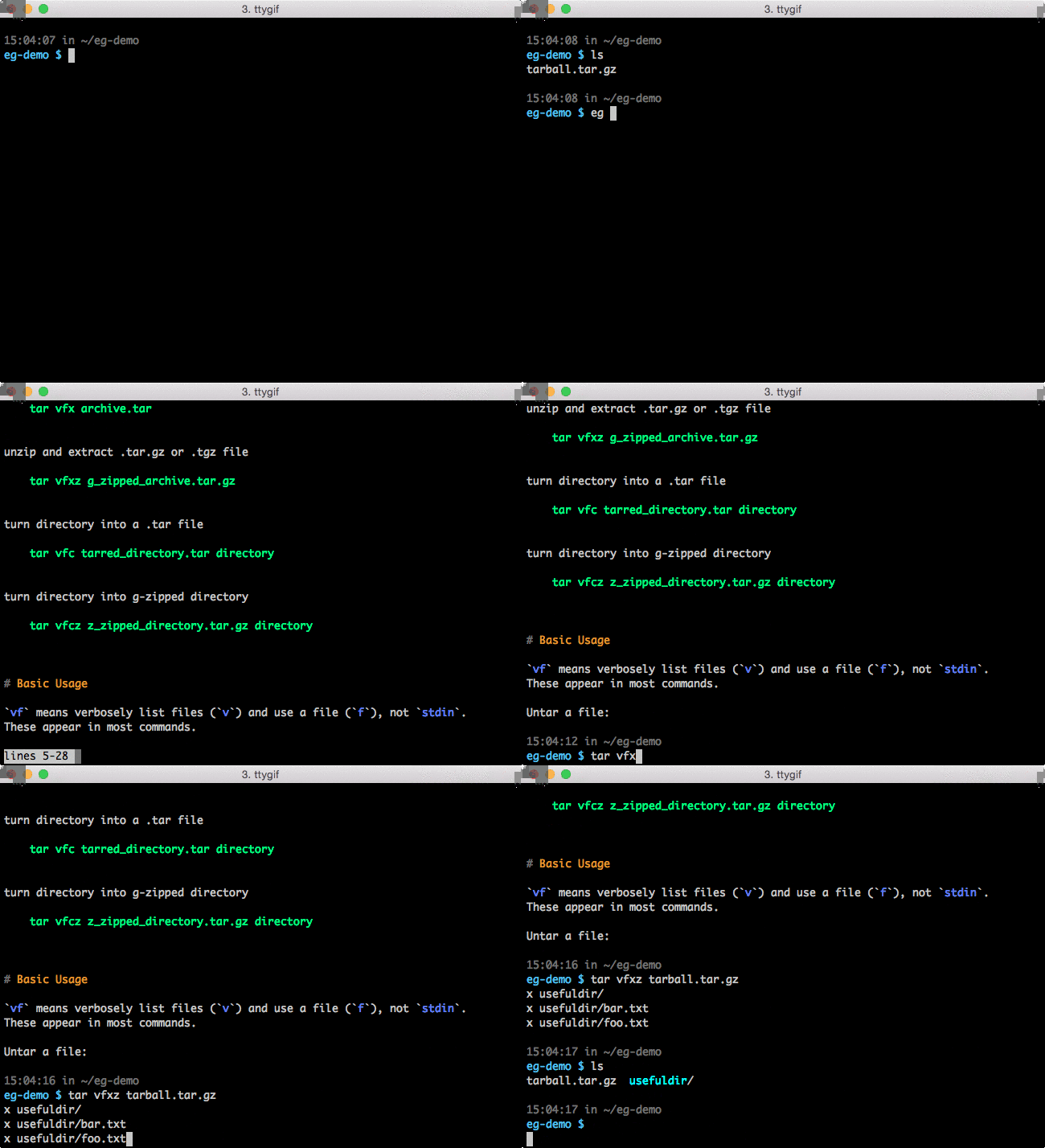
eg: examples for common command line tools

Are you tired to RTFM? Does this xkcd comic feel familiar to you?

Tar

Enter eg, which provides easy examples to common command line tools. Instead of having to find your way in the full manual of tar, you can just type:

eg tar

And you will have common usages, nicely formatted and even colored. For the example of tar, you will have examples of basic usage, tarring, untarring and more:

Eg

Of course, if you then want more information, TFM is the place to go.

eg is dead easy to install. You have to options:

pip install eg
# or
git clone https://github.com/srsudar/eg .
ln -s /absolute/path/to/eg-repo/eg_exec.py /usr/local/bin/eg

Et voila, you can start using eg.

Eg itself can be easily extended, as the example are just markdown files put in the right place. You can find all the documentation including formatting options and more in the eg repository.

Last but not least, the author suggests to alias eg to woman for something that is like man but a little more practical:

alias woman=eg

Tutorial: Install CDH 5 for testing on one machine

This is a tutorial after my own experience to install CDH 5.4 via the Cloudera Manager on one machine only for test purposes. This is based on a Mint machine (based on Ubuntu/Debian). Commands will thus be given with apt-get, you can probably just replace apt-get by yum if you are trying to do this on a Redhat-based server.

Preparation

ssh

Install ssh server on your machine:

apt-get install openssh-server

Make sure you can connect as root if you do no want everything to run under one user, which is a question which will be asked during the installation process (screen 3). Running all under one user is nice for a one-machine test, but I believe you might run into issues if you later want to extend your cluster. For this reason I chose the normal, multi user (hdfs, hadoop and so on) installation. Cloudera actually gives a warning for the single user installation:

The major benefit of this option is that the Agent does not run as root. However, this mode complicates installation, which is described fully in the documentation. Most notably, directories which in the regular mode are created automatically by the Agent, must be created manually on every host with appropriate permissions, and sudo (or equivalent) access must be set up for the configured user.

On my machine, I for instance needed to update /etc/ssh/sshd_config to have the line :

PermitRootLogin yes

Other packages

For the heartbeat, you need supervisor and the command ntpdc:

apt-get install supervisor ntp

Supported platforms

Officially, Cloudera can install on some versions  of Debian or Ubuntu. If you use a derivative, it might work (YMMV), but Cloudera will refuse to install. You can fool the installer by changing the lsb-release file:

sudo mv /etc/lsb-release /etc/lsb-release.orig
sudo ln -s /etc/upstream-release/lsb-release /etc/lsb-release
# After installation you can revert with:
sudo rm /etc/lsb-release
sudo mv /etc/lsb-release.orig /etc/lsb-release

Installation

Follow the documentation from cloudera:

wget http://archive.cloudera.com/cm5/installer/latest/cloudera-manager-installer.bin
chmod u+x cloudera-manager-installer.bin
sudo ./cloudera-manager-installer.bin

Note that it will install the oracle JDK (1.7 for CDH 5.4.0), and postgres. A the end your browser should open and connect you to http://localhost:7180. Do not panic if the connection cannot be established at first. Try again in a minute or two, to give the servers enough time to properly startup. Note that if your machine is not very powerful, it can take 2 minutes. The username and password there are admin/admin.

Problems/Tips

IP address

Click a few times continue, and you will be asked to enter an IP address. As you are only testing on your machine, type yours, which you can find via hostname -I in your terminal. Make sure to use your real IP, not 127.0.0.1. The reason is that if later you extend your cluster with another node, and this node number 2 (n2) wants to access node number 1 (n1), it would try to access n1 via 127.0.0.1, which would of course point to n2 itself. This is a general good practice. As a host will be added to the cloudera manager if it heartbeats, a partial installation might make a ghost host (localhost) appear in ‘Currently Managed Host’. In that case, make sure they are not selected before carrying on.

Acquiring installation lock

If you are blocked on ‘Acquiring installation lock’. Click ‘Abort’, then:

rm -rf /tmp/scm_prepare*
rm -f /tmp/.scm_prepare_node.lock
# if above is not enough:
service cloudera-scm-agent restart
service cloudera-scm-server-db restart
service cloudera-scm-server restart

and ‘retry failed host’

Full restart

If like me you screwed up everything, you can always uninstall everything (make sure to say yes when asked to delete the database files). Cloudera explains (parts of) what to do,  but the violent and complete way is as follow, to do as root:

/usr/share/cmf/uninstall-cloudera-manager.sh

# kill any PID listed by this ps below:
ps aux | grep cloudera
# this command does it automatically
kill $(ps ax --format pid,command | grep cloudera | sed -r 's/^\s*([0-9]+).*$/\1/')
# purge all cloudera packages
apt-get purge cloudera-manager-server-db-2 cloudera-manager-server cloudera-manager-daemons cloudera-manager-agent 
# I am not so sure when this one is installed or not:
apt-get purge cloudera-manager-repository
# your choice, would clean up orphaned packages (postgres)
apt-get autoremove
# purge all droppings
rm -rf /etc/cloudera*
rm -rf /tmp/scm_prepare*
rm -f /tmp/.scm_prepare_node.lock
rm -rf /var/lib/cloudera*
rm -rf /var/log/cloudera*
rm -rf /usr/share/cmf
rm -rf /var/cache/yum/cloudera*
rm -rf /usr/lib/cmf

Could not connect to host monitor

After all is done with success everywhere, you go back to the home page and you see a lot of sad empty graphs with ‘query error’. This means that the management services are not running.

You can easily fix this by clicking on the top left ‘Add Cloudera Management Service’, and following the wizard from there.

I’m not dead!

This is just a small post to explain that I have been off travelling with my family the last 5 months, which is the reason for the absence of new content.

I am now back, with a new job, so this blog will resuscitate. As I am with a new company, I will work on different projects and tools, you might probably expect more Hadoop and less Vertica information.

On a side note, I renamed the blog thisdataguy instead of thisdwhguy, as I find this name more meaningful and relevant. The old URLs will still work for a while, but they all redirect with a 301 to their counterparts on thisdataguy.

Vertica: some uses of sequences

When you want to have a unique identifier for a table, Vertica gives you 3 options. Create a numeric column either as AUTO_INCREMENT or IDENTITY, or use a sequence. The doc is comprehensive about the differences, but it can be summed up quite easily:

  • IDENTITY and AUTO_INCREMENT are part of a table, a SEQUENCE is a standalone object
  • AUTO_INCREMENT is simple and stupid and cannot be tweaked much, IDENTITY has a few more options (start value, increment) a SEQUENCE has a lot of options.

I will here talk a bit about the sequences, as they are the one allowing the most freedom.

Forcing the value of a incrementing column

If you have a table with an ‘id’ column, defined as a IDENTITY or AUTO_INCREMENT, you cannot set a value to this field during data load.:

CREATE TABLE tst_auto (id AUTO_INCREMENT, value varchar(10));
INSERT INTO tst_auto (id, value) VALUES (42, 'cheese');
ERROR 2444: Cannot insert into or update IDENTITY/AUTO_INCREMENT column "id"

If, on the other hand, you use a SEQUENCE, this is possible:

CREATE TABLE test_seq (id INT, value VARCHAR(10));
CREATE SEQUENCE seq;
ALTER TABLE test_seq ALTER COLUMN id set default NEXTVAL('seq');

You can then see that it does what you expect:

INSERT INTO test_seq (value) VALUES ('default');
INSERT INTO test_seq (id, value) VALUES (42, 'forced');
select * from test;
 id | value
----+---------
 1  | default
 42 | forced

If you use this, you must of course be careful that there are no duplication. If the example, you could for instance set the next value of the sequence to 43:

ALTER SEQUENCE seq RESTART WITH 43;

Using a sequence as a global identifier

The fun thing with a sequence is that it can be used on more than one table, thus giving you a global identifier, for instance:

-- 2 tables...
CREATE TABLE tst  (id INT, value varchar(10));
CREATE TABLE tst2 (id INT, value varchar(10));

-- 1 sequence...
CREATE SEQUENCE tst_seq;

-- ... said sequence is used by both tables
ALTER TABLE tst  ALTER COLUMN id set default NEXTVAL('tst_seq');
ALTER TABLE tst2 ALTER COLUMN id set default NEXTVAL('tst_seq');

-- testing...
INSERT INTO tst  (value) VALUES ('tst');
INSERT INTO tst2 (value) VALUES ('tst2');

-- success!
SELECT * FROM tst;
--  id |  value
-- ----+---------
--   1 | tst
-- (1 row)

SELECT * FROM tst2;
--  id |  value
-- ----+----------
--   2 | tst2
-- (1 row)

Easy import from Hive to Vertica

Properly setup, Vertica can connect to Hcatalog, or read hdfs files. This does require some DBA work, though.

If you want to easily get data fro Hive to Vertica, you can use the COPY statement with the LOCAL STDIN modifier and pipe the output of Hive to the input of Vertica. Once you add a dd in the middle to prevent the stream to just stop after a while, this works perfectly. I am not so sure why dd is needed, but I suppose it buffers data and makes the magic happen.

hive -e "select whatever FROM wherever" | \
dd bs=1M | \
/opt/vertica/bin/vsql -U $V_USERNAME -w $V_PASSWORD -h $HOST $DB -c \
"COPY schema.table FROM LOCAL STDIN DELIMITER E'\t' NULL 'NULL' DIRECT"

Of course, the previous statement needs to be amended to use your own user, password and database.

The performance are quite good with this, although I cannot give a good benchmark as in our case the hive statement was not trivial.

One thing to really take care of is where you run this statement. You can run it from everywhere as long as hive and Vertica are accessible, but be aware that data will flow from hive to your server to Vertica. Running this statement on a Vertica node or your hive server will reduce the network traffic and might speed up things.

This post is based on my answer to a question on stackoverflow.

A GUI for Vertica: DbVisualizer

vsql is very porwerful, but it is always nice to have a nice GUI tool with your database. As Vertica can be accessed via ODBC, most tools can at least provide some kind of GUI on top of Vertica.

DbVisualizer (“dbvis”) goes one step further. They teamed up with HP to make dbvis aware of Vertica specifities as projections, sessions, load streams and more. You can find the list of Vertica features supported by dbvis on their website. Note that some of them are only available for the Pro version, unfortunately (note the little in the link above) but a lot of goodness is available in the free version.

A few screenshots below will show some nice Vertica-specific options.

Creating a table, with column encoding

CreateTableDBvis
Table with projections

TableWithProj

DBA views (notice sessions, locks, tuple mover…)

DBAviews

Vertica: Panic – Data consistency problems

While replacing a node and during the recovery, the node did reboot (human mistake). After actual reboot the recover did not proceed and the node stayed in DOWN state, even if we tried to restart it via the admintools.

In vertica.log, we could see the following lines:

<PANIC> @v_dwh_node0003: VX001/2973: Data consistency problems found; startup aborted
 HINT: Check that all file systems are properly mounted. Also, the --force option can be used to delete corrupted data and recover from the cluster
 LOCATION: mainEntryPoint, /scratch_a/release/vbuild/vertica/Basics/vertica.cpp:1441

As the logs nicely suggest, using the (undocumented) --force option can help. That said, this option cannot be used from the admintool curse interface, and must be used from the command line:

/opt/vertica/bin/admintools -t restart_node -d $db_name -s $host --force

That way corrupted data was deleted, and the recovering could carry on nicely.

Create and apply patch from a github pull request

You have a local clone of a github repository, somebody created a pull request against this repository and you would like to apply it to your clone before the maintainer of the origin actually merges it.

How to do that?

It is actually surprisingly neat. When you look at the url of a github PR:

https://github.com/torvalds/linux/pull/42

You can just add ‘.patch’ at the end of the url to get a nicely formatted email patch:

https://github.com/torvalds/linux/pull/42.patch

From there on, you have a few options. If you download the patch (in say pr.patch) at the root of your clone, you can apply it:

git am ./pr.patch

If you want to apply the code patch without actually apply the commits, you can use your old trusty patch command:

patch -p 1 &lt; ./pr.patch

If you are lazy (as my director studies always said, ‘laziness drives progress’), you can do all in one line:

wget -q -O - 'https://github.com/torvalds/linux/pull/42.patch' | git am

Vertica upgrade or install: Default shell must be set to bash

When upgrading Vertica, it will check if bash is the default shell for the dbadmin user, and complain loudly if this is not the case:

Error: Default shell on the following nodes are not bash. Default shell must be set to bash.
10.0.0.1 for dbadmin:
10.0.0.2 for dbadmin:
Exiting...
Installation FAILED with errors.

Of course, if the shell is indeed not bash, you can fix it by running

chsh -s /bin/bash

on the relevant nodes as the dbadmin user.

In some cases, bash is indeed the shell, but due to ssh or sudo configuration, the installer does not see it. In that case, using visudo to edit the /etc/sudoers file just add the following lines:

Defaults:dbadmin !requiretty
dbadmin ALL=(ALL) NOPASSWD:ALL

Those lines are needed only at install, and can be reverted afterwards.